
Gitea
Run Gitea with RustFS as the S3 storage backend for LFS objects and attachments, deployed with Docker Compose.
This guide connects Gitea — the self-hosted Git service — to RustFS through Gitea's minio storage type. You will start Gitea with Docker Compose, create a repository, push a Git LFS object, attach a file to an issue, and verify that both the LFS object and the attachment are stored in RustFS. The workflow was verified with gitea/gitea:1.24.4 and rustfs/rustfs-x86-musl:v2.3.1.
You need Docker with the Compose plugin and the git and git-lfs clients on your workstation. This deployment is intended for local integration testing, not production.
Architecture
Gitea stores the Git repository itself on its local disk, while the minio storage type routes large files — LFS objects, issue attachments, avatars, repository archives, packages, and Actions artifacts — to the gitea-data bucket in RustFS. Gitea creates the bucket on startup if it does not exist.
Create the project files
Create a working directory:
mkdir rustfs-gitea
cd rustfs-gitea
Create an environment file and replace both credential placeholders:
RUSTFS_ACCESS_KEY=<your-access-key>
RUSTFS_SECRET_KEY=<your-secret-key>
Use dedicated credentials for the gitea-data bucket. Do not commit .env to source control.
Create the Gitea configuration and replace both credential placeholders with the same values you set in .env — the global minio storage type applies to LFS, attachments, avatars, repository archives, packages, and Actions artifacts:
APP_NAME = RustFS Gitea
RUN_MODE = prod
WORK_PATH = /data/gitea

[server]
DOMAIN = localhost
ROOT_URL = http://localhost:3000/
HTTP_PORT = 3000
LFS_START_SERVER = true

[database]
DB_TYPE = sqlite3
PATH = /data/gitea/gitea.db

[storage]
STORAGE_TYPE = minio
MINIO_ENDPOINT = rustfs:9000
MINIO_ACCESS_KEY_ID = <your-access-key>
MINIO_SECRET_ACCESS_KEY = <your-secret-key>
MINIO_BUCKET = gitea-data
MINIO_LOCATION = us-east-1
MINIO_USE_SSL = false

[log]
MODE = console
LEVEL = info

[security]
INSTALL_LOCK = true
SECRET_KEY = change-me-to-a-random-string
LFS_START_SERVER enables the Git LFS HTTP API. MINIO_ENDPOINT uses the Compose-internal hostname rustfs; the endpoint is reached with path-style requests by default.
Create the Compose file:
services:
  rustfs:
    image: rustfs/rustfs-x86-musl:v2.3.1
    environment:
      RUSTFS_ACCESS_KEY: ${RUSTFS_ACCESS_KEY}
      RUSTFS_SECRET_KEY: ${RUSTFS_SECRET_KEY}
      RUSTFS_VOLUMES: /data
      RUSTFS_ADDRESS: ":9000"
      RUSTFS_CONSOLE_ADDRESS: ":9001"
      RUSTFS_CONSOLE_ENABLE: "true"
    volumes:
      - rustfs-data:/data
    ports:
      - "9000:9000"
      - "9001:9001"
    healthcheck:
      test: ["CMD", "curl", "-sf", "http://127.0.0.1:9000/health"]
      interval: 10s
      timeout: 5s
      retries: 6
      start_period: 10s
    networks:
      - gitea

  gitea:
    image: gitea/gitea:1.24.4
    depends_on:
      rustfs:
        condition: service_healthy
    environment:
      USER_UID: "1000"
      USER_GID: "1000"
    volumes:
      - gitea-data:/data
      - ./app.ini:/data/gitea/conf/app.ini:ro
    ports:
      - "3000:3000"
    networks:
      - gitea

networks:
  gitea:

volumes:
  rustfs-data:
  gitea-data:
The volume-backed /data directory keeps the SQLite database and the Git repositories across container restarts, while LFS objects and attachments live in RustFS.
Validate and start the deployment
Resolve the Compose file before starting containers:
docker compose configStart the services:
docker compose up -d
docker compose ps
Watch the Gitea log until every storage backend reports the Minio type:
docker compose logs gitea | grep "Initialising"The output should list Attachment, Avatar, LFS, and the remaining storage sections, each followed by a Creating Minio storage at rustfs:9000:gitea-data line.
Open http://localhost:3000 and create the administrator account, then open the RustFS Console at http://localhost:9001 — the gitea-data bucket appears after the first storage operation.
Push a Git LFS object
Create a repository named rustfs-demo in the Gitea web UI, then push an LFS-tracked file from your workstation:
mkdir lfs-demo && cd lfs-demo
git init
git config user.email you@example.com
git config user.name you
git lfs install
git lfs track "*.bin"
git add .gitattributes
dd if=/dev/urandom of=dataset.bin bs=1M count=8
git add dataset.bin
git commit -m "add LFS dataset"
git remote add origin http://localhost:3000/<your-username>/rustfs-demo.git
git push origin main
git push uploads the LFS object through the Gitea LFS API, which writes it to RustFS. Clone the repository into a second directory and run git lfs pull — the downloaded dataset.bin must be byte-identical to the original:
sha256sum dataset.bin
cd ../lfs-demo-clone && git lfs pull && sha256sum dataset.bin
Both checksums match because both clients read the object from RustFS.
Attach a file to an issue
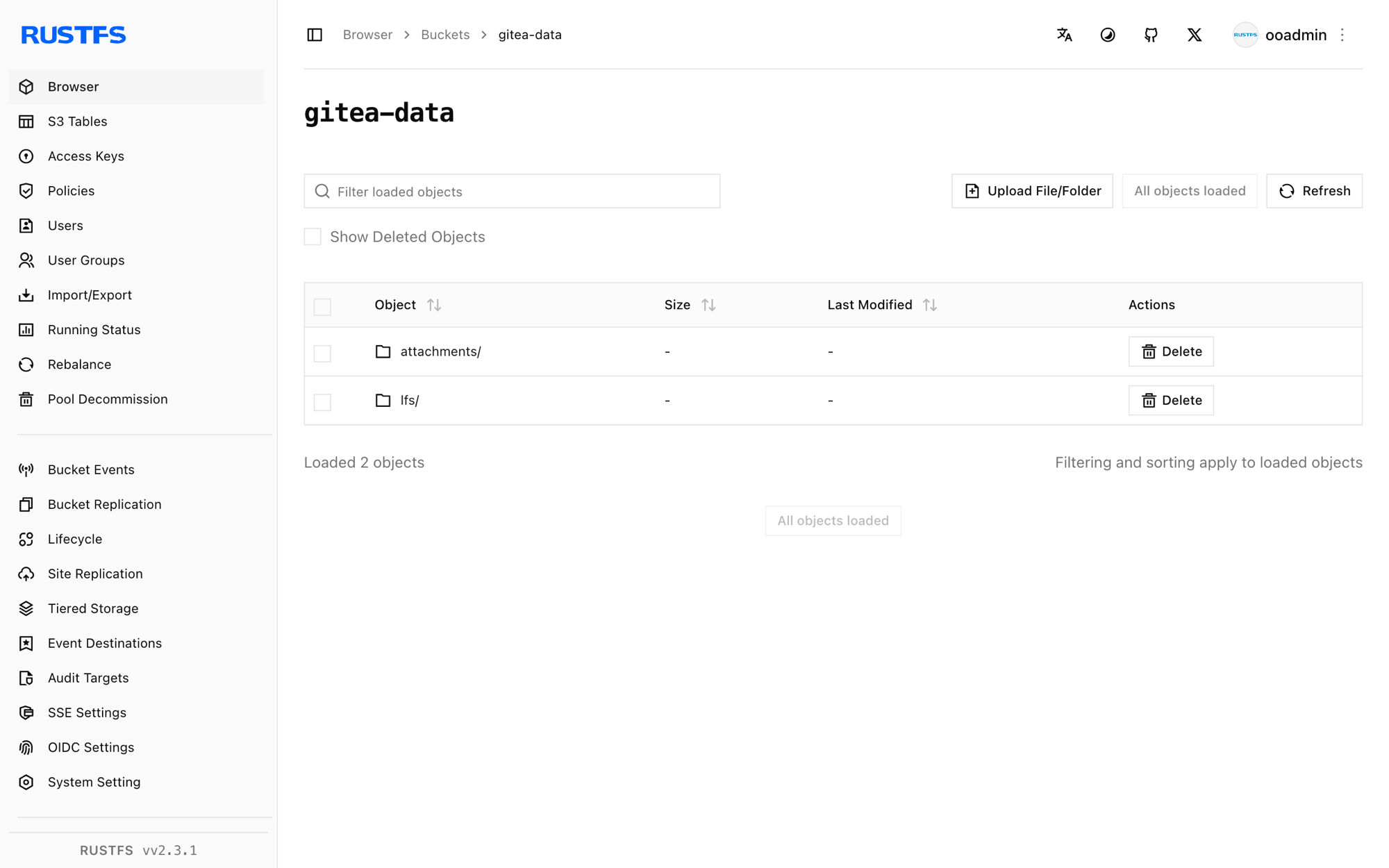
Open the rustfs-demo repository, create an issue, and attach a small text file through the issue form. Gitea stores the upload as attachments/<prefix>/<uuid> in the gitea-data bucket and serves downloads through /attachments/<uuid>.
Verify objects in RustFS
List the bucket with the rc client:
docker compose exec rustfs /usr/bin/rc ls local/gitea-data/ -rThe output should include the LFS object under lfs/ and the attachment under attachments/:
attachments/9/2/92fdd48d-531c-4cba-8b3f-4e2004a10fc7
lfs/37/76/6ddfc07e803de58a69328db9a58a07cf7080ddde55c155a7531bc650a000
The LFS object key is the SHA-256 content hash used by the Git LFS protocol.
Stop or reset the deployment
Stop the containers while keeping all data:
docker compose downThe RustFS volume keeps the gitea-data bucket, so LFS objects and attachments survive a restart. To delete everything, including the objects in RustFS, add --volumes.
Troubleshooting
The Gitea install page appears instead of the login page
The configuration file must exist at /data/gitea/conf/app.ini inside the container. If the mount path is wrong, Gitea starts with defaults and shows the installation wizard. Mount the file as shown in the Compose example and restart.
Push fails with an LFS or 403 error
Confirm the credentials in app.ini match the RustFS credentials and that the rustfs hostname resolves inside the Compose network:
docker compose logs gitea | grep -i minioObjects land in local storage instead of RustFS
The GITEA__storage__STORAGE_TYPE: minio environment variable and the [storage] section of app.ini must agree. After changing either, restart Gitea and check the Initialising log lines again.
Next steps
- Review S3 compatibility notes before adopting additional Gitea storage targets.
- Create dedicated production credentials with Access Key Management.
- Follow the Gitea storage documentation to move packages, Actions artifacts, or individual storage sections to separate buckets.