
GitLab
Configure GitLab as an OpenID Connect identity provider for RustFS Console single sign-on.
RustFS integrates with GitLab through the OpenID Connect (OIDC) Authorization Code Flow. The examples on this page use the default RustFS provider ID, default.
Requirements
Before you begin, prepare:
- An installed GitLab instance and access to its Admin area.
- A RustFS deployment with a public HTTPS Console origin.
- A RustFS policy to assign to GitLab users. The examples use
consoleAdmin; use a policy with only the permissions your users require in production.
Overview
The browser login flow is:
- RustFS sends an authorization-code request with a Proof Key for Code Exchange (PKCE) S256 challenge.
- GitLab authenticates the user and redirects the browser to RustFS with
codeandstate. - RustFS exchanges the code at the GitLab token endpoint.
- RustFS verifies the ID token signature, issuer, audience, expiry, and nonce.
- RustFS assigns the configured local Identity and Access Management (IAM) policy and issues temporary credentials for the Console session.
GitLab authenticates the user, while RustFS policies authorize S3 and administration operations.
The examples use the following values. Replace the hostnames and client secret for your environment:
| Setting | Example |
|---|---|
| GitLab issuer | https://gitlab.example.com |
| GitLab application ID | <gitlab-application-id> |
| Public RustFS origin | https://rustfs.example.com |
| RustFS callback URL | https://rustfs.example.com/rustfs/admin/v3/oidc/callback/default |
Configuration
GitLab configuration
Create the OAuth application
- Sign in to GitLab as an administrator.
- Open Admin Area, select Applications, and select New application.
- Enter
RustFS OIDCas the application name. - Set Redirect URI to the exact RustFS callback URL:
https://rustfs.example.com/rustfs/admin/v3/oidc/callback/default- Enable Confidential.
- Enable Trusted to skip the user authorization prompt for this instance-wide application.
- Select the
openid,profile, andemailscopes. - Save the application, then copy the generated application ID and secret.
See the GitLab OAuth provider documentation for details about administering applications.
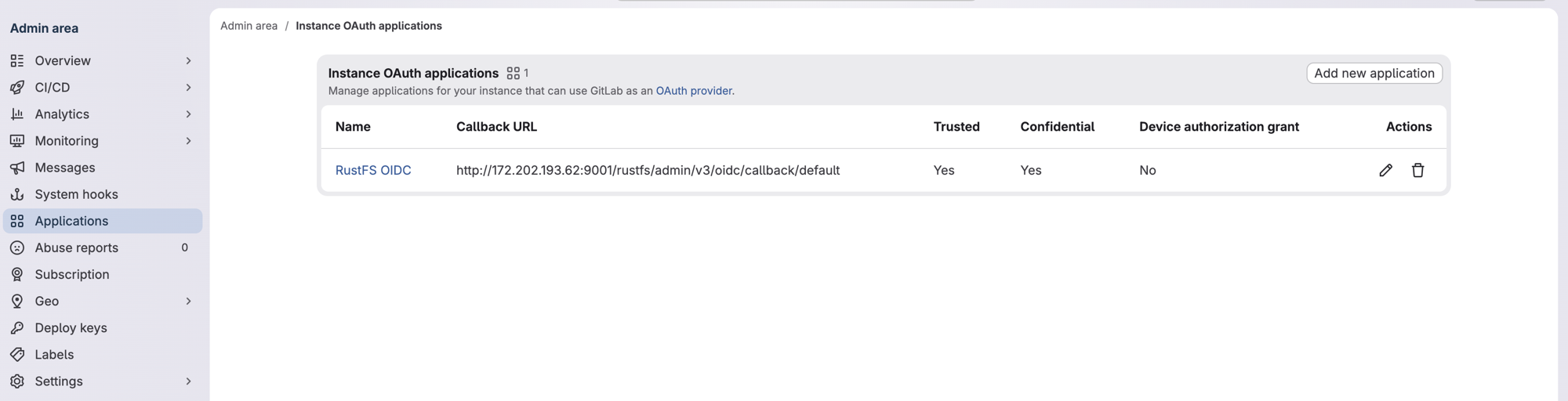
Test environment shown
The screenshot shows an HTTP callback URL from a test environment. Use the public HTTPS callback URL for your RustFS deployment.
RustFS configuration
Configure the GitLab provider through environment variables.
Configure with environment variables
Add the GitLab provider and public browser origin to the RustFS service environment:
RUSTFS_BROWSER_REDIRECT_URL="https://rustfs.example.com"

RUSTFS_IDENTITY_OPENID_ENABLE=on
RUSTFS_IDENTITY_OPENID_CONFIG_URL="https://gitlab.example.com"
RUSTFS_IDENTITY_OPENID_CLIENT_ID="<gitlab-application-id>"
RUSTFS_IDENTITY_OPENID_CLIENT_SECRET="<gitlab-application-secret>"
RUSTFS_IDENTITY_OPENID_SCOPES="openid,profile,email"
RUSTFS_IDENTITY_OPENID_REDIRECT_URI="https://rustfs.example.com/rustfs/admin/v3/oidc/callback/default"
RUSTFS_IDENTITY_OPENID_REDIRECT_URI_DYNAMIC=off
RUSTFS_IDENTITY_OPENID_DISPLAY_NAME="GitLab"
RUSTFS_IDENTITY_OPENID_EMAIL_CLAIM="email"
RUSTFS_IDENTITY_OPENID_USERNAME_CLAIM="preferred_username"
RUSTFS_IDENTITY_OPENID_ROLE_POLICY="consoleAdmin"
Restart RustFS after applying the configuration.
RUSTFS_BROWSER_REDIRECT_URL must contain the public scheme and authority without a path. It controls the Console success redirect and logout fallback URL. The provider callback URL must exactly match the URL registered in GitLab.
Limit the assigned policy
RUSTFS_IDENTITY_OPENID_ROLE_POLICY assigns the same RustFS policy to every user who signs in through this provider. Replace consoleAdmin with a policy that grants only the permissions required by your GitLab users.
For a reverse proxy or load balancer, preserve the callback query string and route the authorize and callback requests to the same RustFS node. The in-flight OIDC state is local to that node.
Verification
Verify GitLab discovery
Query the GitLab discovery document:
curl -fsS "https://gitlab.example.com/.well-known/openid-configuration" | jq '{
  issuer,
  authorization_endpoint,
  token_endpoint,
  jwks_uri,
  scopes_supported,
  code_challenge_methods_supported
}'
Confirm that:
issuerishttps://gitlab.example.com.authorization_endpoint,token_endpoint, andjwks_uriare present.scopes_supportedincludesopenid,profile, andemail.code_challenge_methods_supportedincludesS256.
Verify the RustFS provider
After restarting RustFS, check that the provider is available:
curl -fsS "https://rustfs.example.com/rustfs/admin/v3/oidc/providers" | jqThe response should include the default provider with the display name GitLab.
Test Console login
Open the RustFS Console and select GitLab, or open the authorization endpoint directly:
https://rustfs.example.com/rustfs/admin/v3/oidc/authorize/default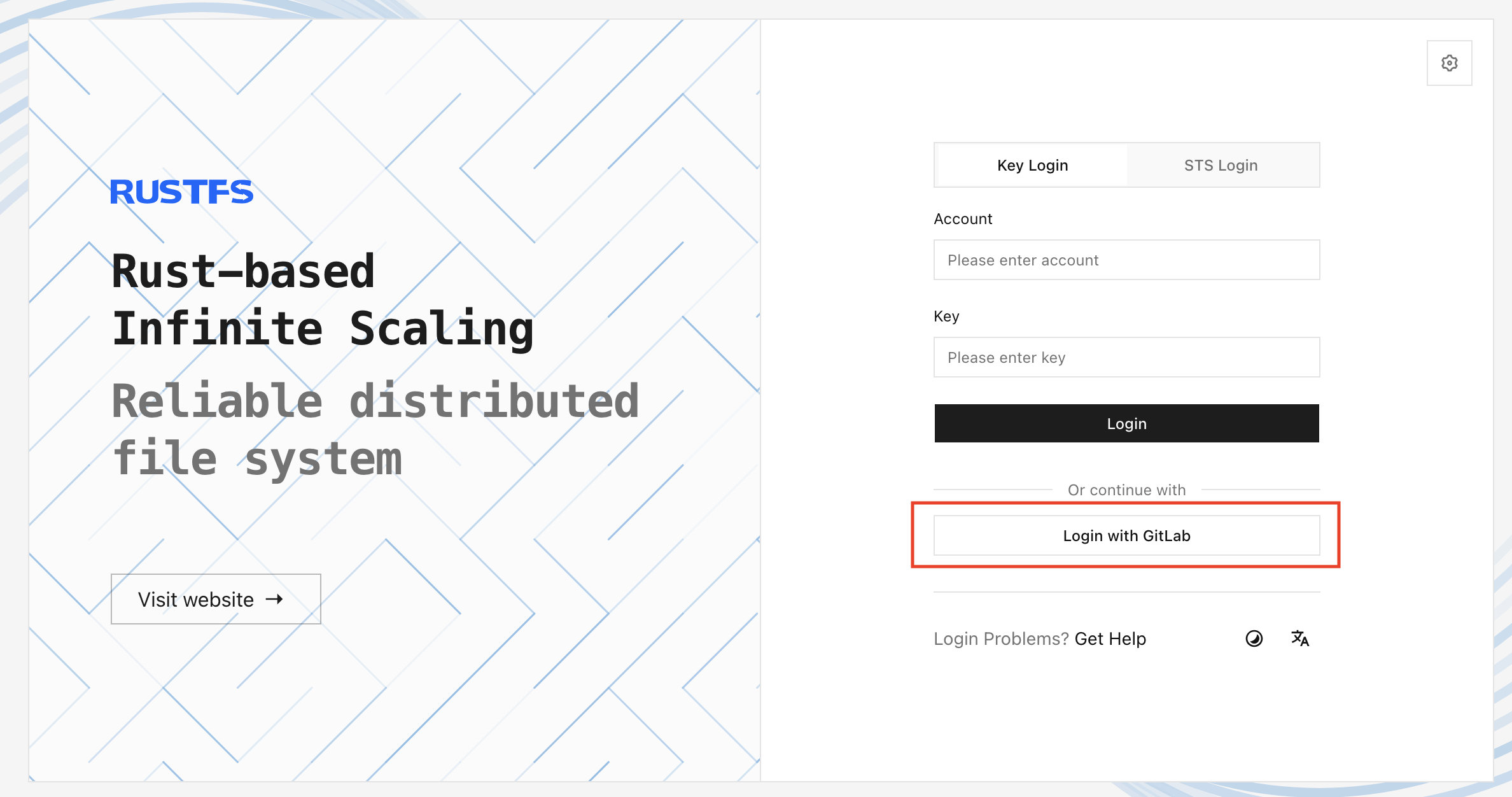
Verify the complete flow:
- The browser redirects to GitLab.
- The user signs in and authorizes the application when prompted.
- GitLab redirects to the RustFS callback URL with
codeandstate. - RustFS validates the ID token and creates the Console session.
- The Console opens with the configured RustFS policy.
If GitLab reports a redirect URI mismatch, confirm that the URI registered in the GitLab application exactly matches RUSTFS_IDENTITY_OPENID_REDIRECT_URI.
Next steps
- Review users, groups, and policies before selecting the policy assigned to GitLab users.
- Review the Console security notes before exposing the login endpoint publicly.