
Installing RustFS on macOS
Quick ways to start RustFS on macOS, using the graphical one-click startup package.
On macOS, you can use three methods for installation:
- Docker
- Graphical one-click startup package
- Binary package
This article mainly explains how to use the RustFS graphical one-click startup package to quickly launch RustFS.
Preparation
Graphical startup mode only supports single-node single-disk mode, more suitable for development, debugging, and testing environments.
- For detailed introduction about startup modes, please refer to Installation Modes
- Download the installation package, modify permissions, and start.
Download
Download the latest release from GitHub Releases or the official download page.
Modify Permissions
Please confirm that this program has relevant execution permissions in the macOS operating system.
Start the Service
- Double-click the startup icon
- Click configure disk
- Click "Start Service", and RustFS service starts successfully.
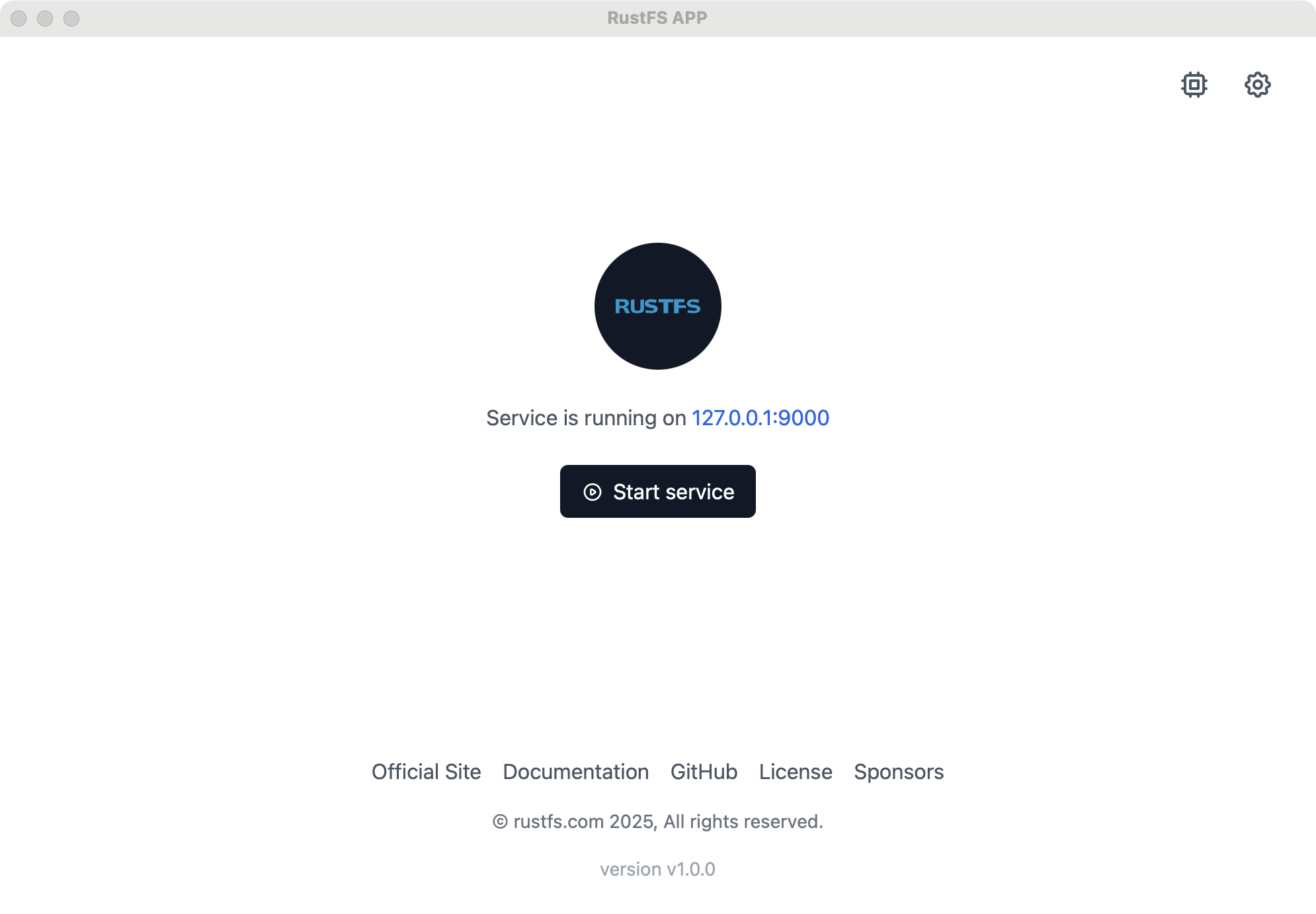
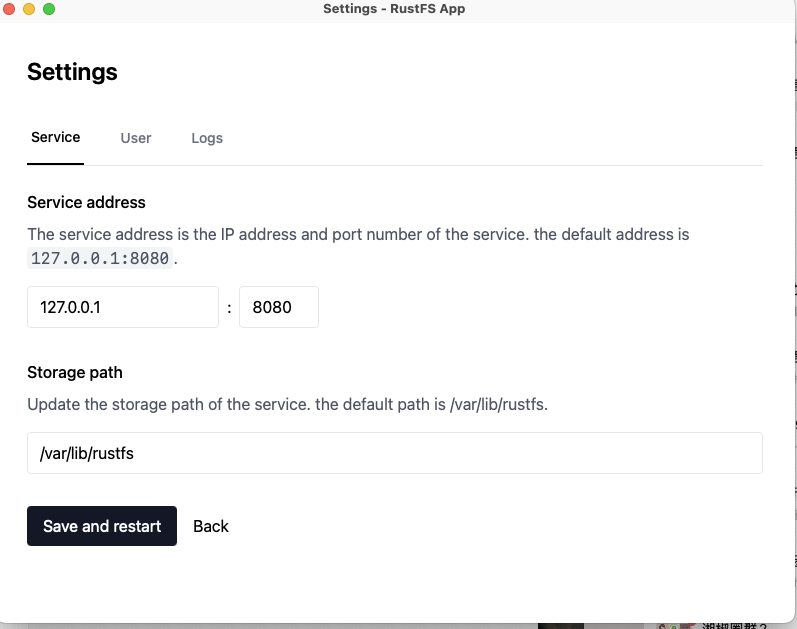
Modify Configuration
Click the modify button (gear-shaped button) in the upper right corner to modify:
- Server default port
- Default administrator username and password
- Specified disk directory
Access Console
After successful startup, visit http://127.0.0.1:7001 to access the console.
Port 7001 applies to the macOS desktop launcher. If you run the standalone rustfs server binary instead, the console listens on port 9001 by default.