
Pool Decommission
Drain and retire a RustFS storage pool through the Console or rc, then verify that its data was relocated.
Overview
Requirements
- Install
rcon the administration host before using thercworkflow in this guide. - Configure credentials with decommission administration permission.
Pool decommission moves objects from a selected pool to the remaining active pools so the target pool can be removed from the deployment. Use it when retiring hardware, replacing a pool, or consolidating capacity.
Decommission is different from Rebalancing: rebalance keeps every pool active, while decommission drains and retires the selected pool. The two operations cannot run at the same time.
Before starting:
- Keep at least one active pool after the operation.
- Verify that the remaining pools have enough free capacity. RustFS requires their free space to cover the used bytes being drained plus a 30% overhead.
- Confirm that every node and disk is healthy and no rebalance is running.
- Back up critical data and schedule the operation during a lower-traffic period.
- Record the exact pool ID and volume expression before selecting the target.
Canceling a decommission does not roll back completed moves. Objects already relocated remain in the destination pools.
Operation
Start decommissioning in the Console
-
Sign in to the RustFS Console with an account that has decommission administration permission.
-
Open Pool Decommission.
-
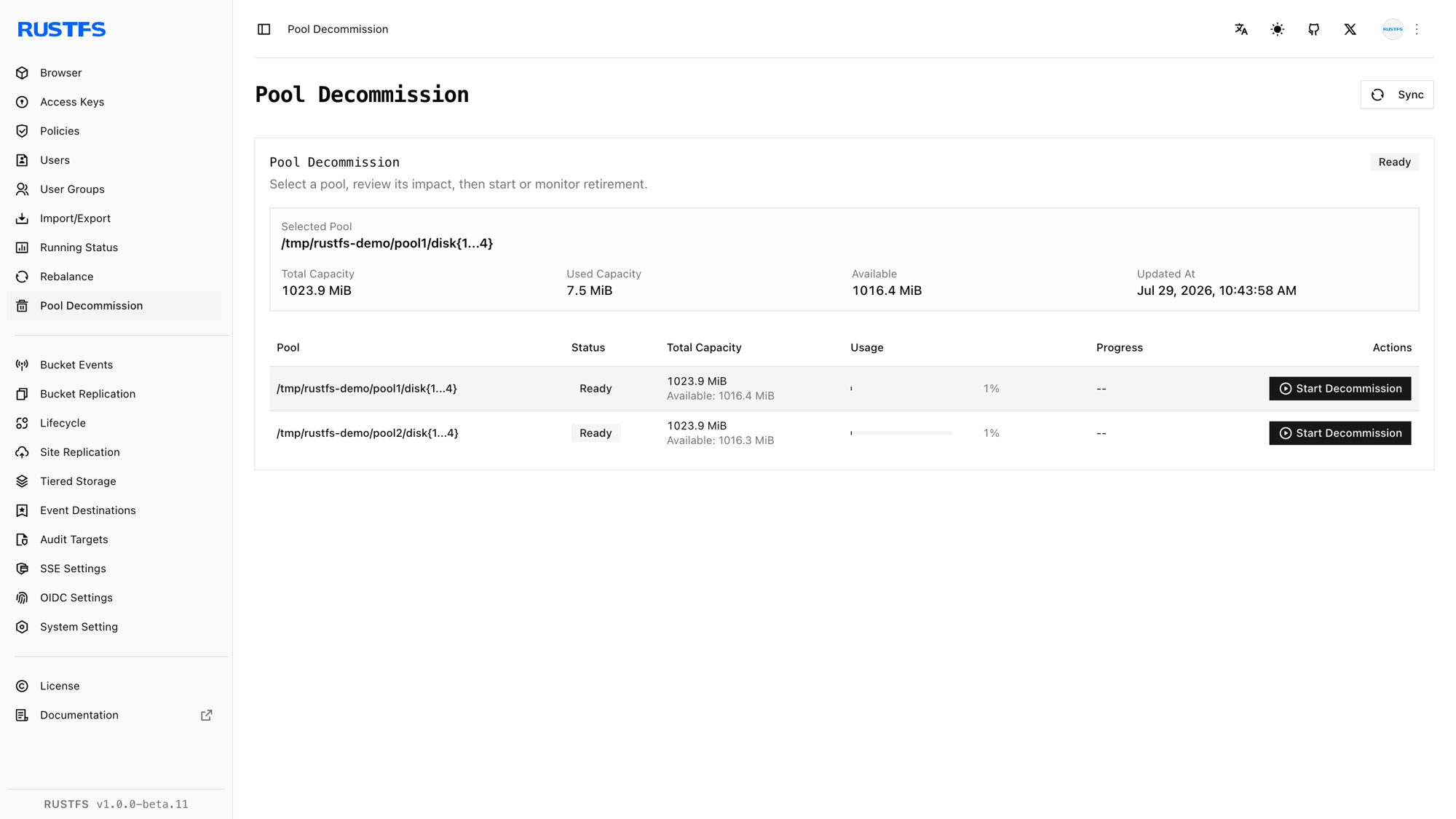
Locate the pool to retire and verify its ID, volume expression, used capacity, and status.
-
Select Start Decommission for that pool.
-
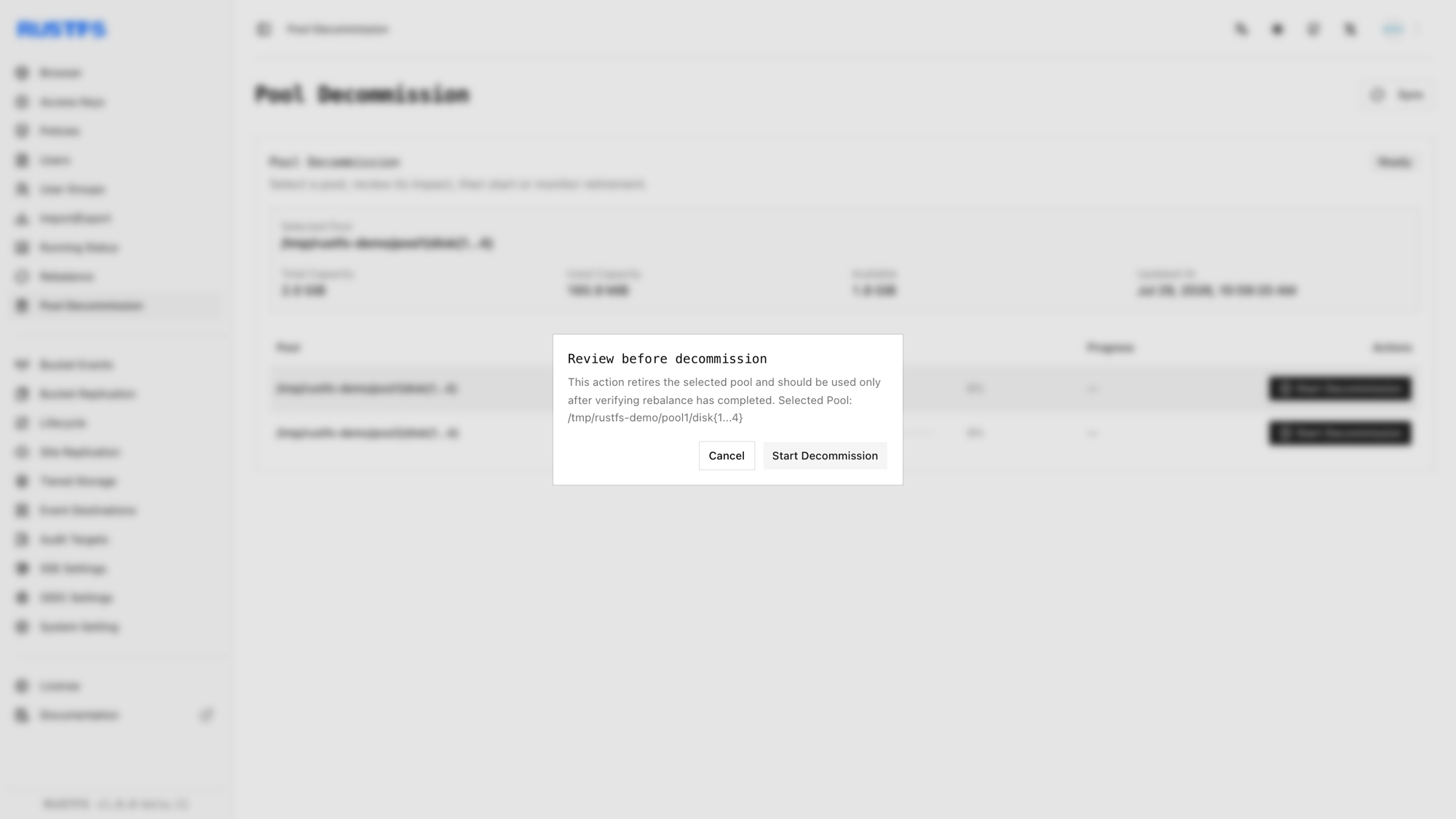
Review the confirmation dialog carefully, then select Start Decommission.
-
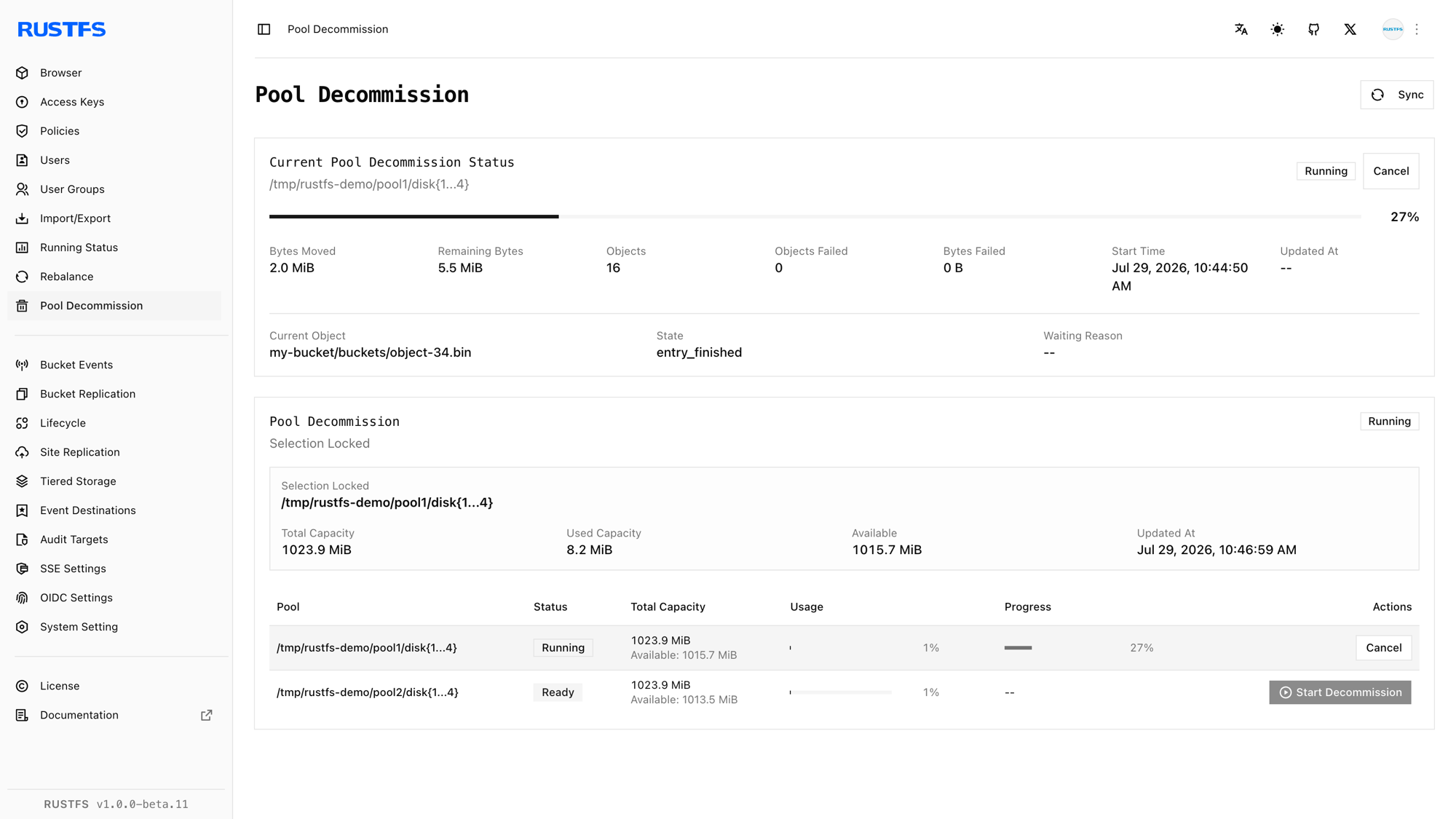
Use Sync to refresh the pool state and movement counters until the operation completes.
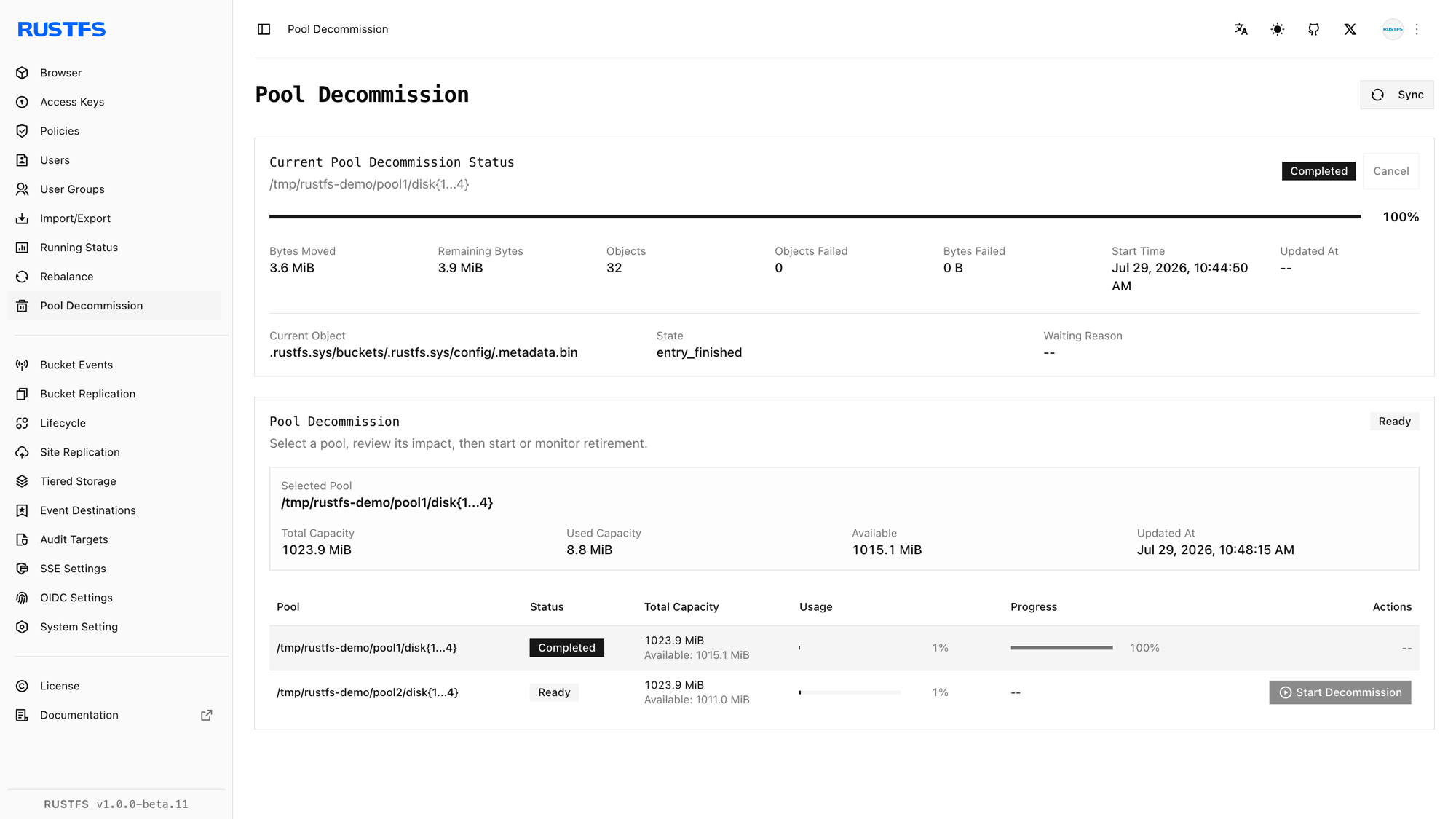
After completion, remove the drained pool expression from RUSTFS_VOLUMES on every remaining node and restart RustFS with the same ordered topology. For Helm, decommission the pool before removing its entry from pools.list; never remove or reorder a live pool entry.
Start decommissioning with rc
Configure the cluster alias if needed, then list the pools:
rc alias set rustfs http://<server-ip>:9000 <your-access-key> <your-secret-key>
rc admin pool list rustfs
Start decommissioning pool 0 by its zero-based ID:
rc admin decommission start rustfs 0 --by-idYou can instead pass the exact pool volume expression without --by-id:
rc admin decommission start rustfs 'http://rustfs-node1:9000/data/rustfs{1...4}/mnmd'Monitor all pools or only the target pool:
rc admin decommission status rustfs
rc admin decommission status rustfs 0 --by-id
To cancel a running operation, use:
rc admin decommission cancel rustfs 0 --by-idIf a decommission is failed or canceled, clear its metadata before retrying:
rc admin decommission clear rustfs 0 --by-idAfter the target reports complete, remove its expression from RUSTFS_VOLUMES on every remaining node and restart RustFS with the reduced topology.
Verification
Verify decommissioning in the Console
Confirm that the target pool reports Completed, with zero failed objects and zero failed bytes. After removing the pool from the startup topology and restarting RustFS, verify that:
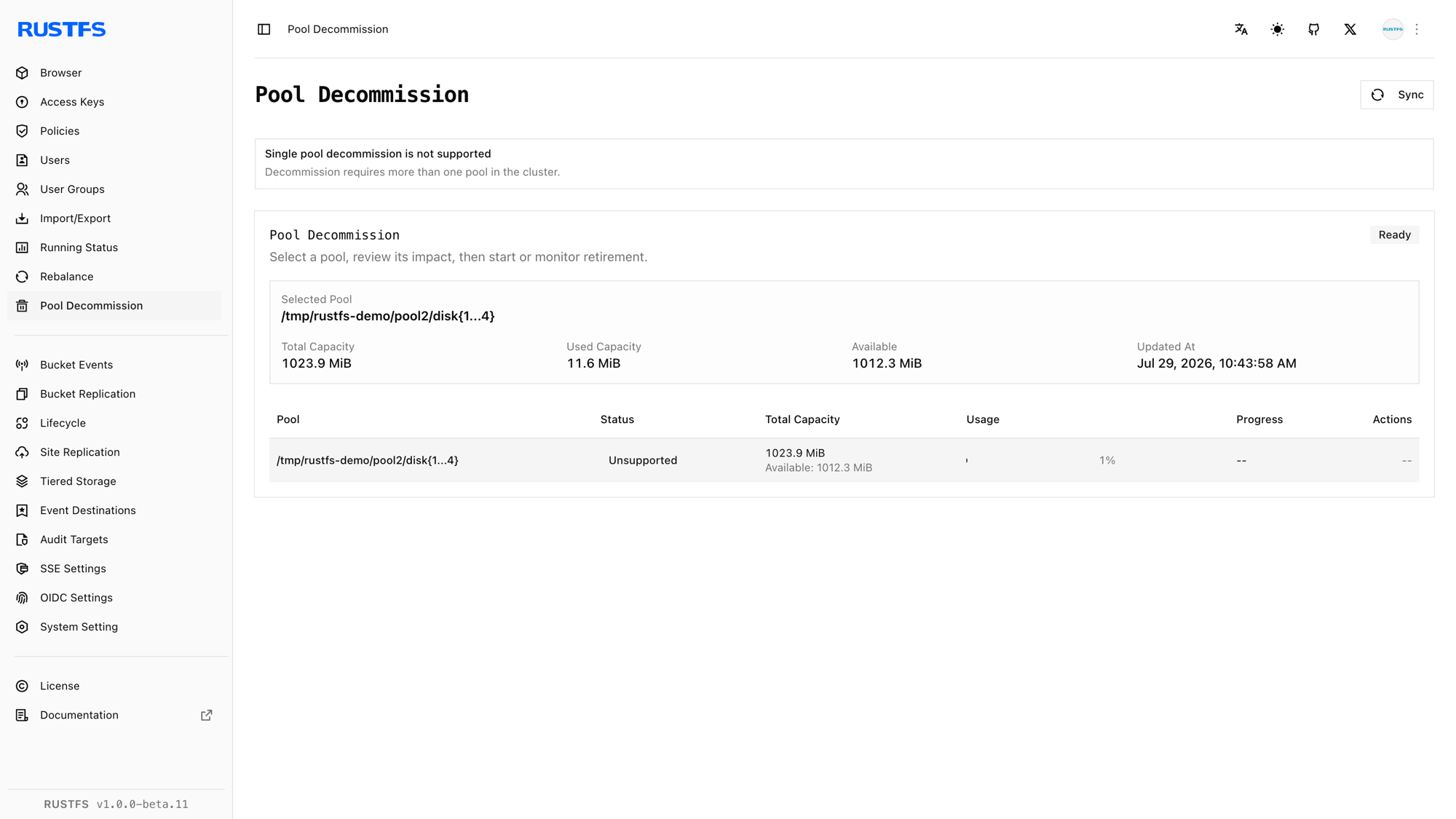
- The retired pool no longer appears as an active pool.
- Every remaining node and disk is online.
- Remaining pools show the relocated data and have adequate free capacity.
- Existing objects can still be listed, read, and downloaded.
Verify decommissioning with rc
Before removing the pool from the topology, run:
rc admin decommission status rustfs 0 --by-idConfirm that the status is complete and the failed object and byte counters are zero. After updating RUSTFS_VOLUMES and restarting RustFS, run:
rc admin pool list rustfsVerify that only the intended active pools remain. Read objects that previously resided on the retired pool and write a new test object through the S3 endpoint.